PRODUCT PHOTOS × AD CREATIVE × YOUR BRAND × SOCIAL STORIES × MOTION CONCEPTS × CAMPAIGN VARIATIONS ×PRODUCT PHOTOS × AD CREATIVE × YOUR BRAND × SOCIAL STORIES × MOTION CONCEPTS × CAMPAIGN VARIATIONS ×
VIDEO AD EDITING
AI Video Ad Editing: Product, Character & Background Replacement
Start with a reference ad. Prepare a new product, character or setting for your next version.
01 / PRODUCT SWAP
Replace products in video ads
Prepare a new version for e-commerce demos, product launches and brand campaigns. Add the original ad and new product images, then describe the item to replace and the framing, action and timing you want to keep.
Add model, character or clothing references to explore a new look for an existing performance. Define who changes, what they wear and which movements should stay.
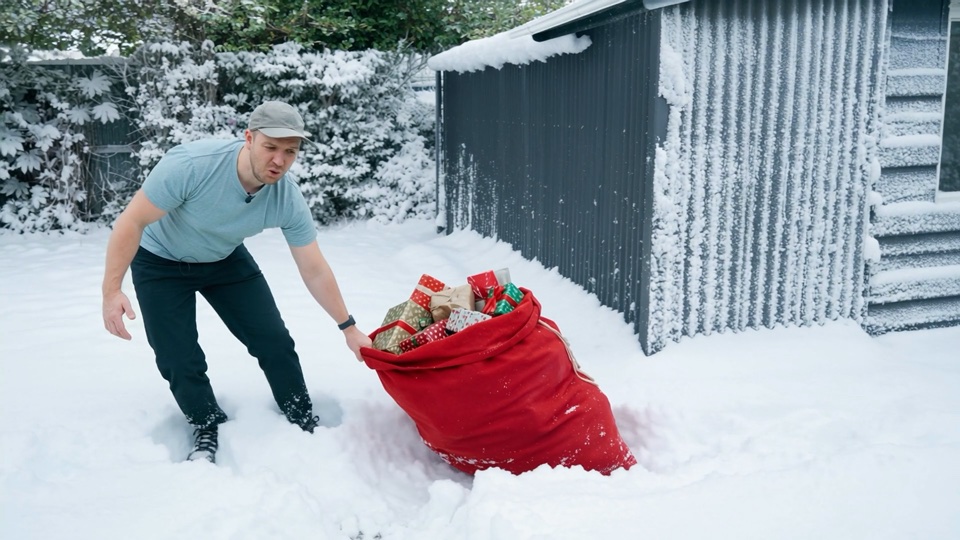
Explore a new location, season or campaign setting with the same reference clip. Describe the new background and the subject, framing and movement to preserve.
Add one character image and a motion video showing the action you want to use.
02
Set your creative direction
Describe the scene and details, then choose the resolution and character orientation.
03
Review and generate
Check the quoted credit cost, generate one video, and find the saved result in your account.
A little motion
Give your message a rhythm.
Turn a character image and a motion video into a new video. Add your references and creative direction, choose the resolution, and review the credit cost before generating.
01Keep the product sharp and easy to recognize.02Choose a crop with enough room for your message.03Use images you own or have permission to advertise.
FAQ
AdMultiplier AI video generator: common questions
01What is AdMultiplier and what kind of AI videos can I create?+
AdMultiplier provides a character motion video workspace. Use one character image for appearance and one reference video for movement to create a new video with Kling motion control. A separate product studio creates image ads and short animated compositions.
02How do I animate a character photo with a motion reference video?+
Open the video workspace, upload your character image and motion video, and add any creative direction you need. Choose the resolution and whether character orientation follows the video or the image, review the quoted credits, then generate. A text prompt alone is not enough for this workflow.
03Which image and video formats can I upload?+
Upload one JPEG or PNG character image up to 10 MB and one MP4 or MOV motion video up to 100 MB. Both dimensions must exceed 340 pixels, and the width-to-height ratio must be between 0.4 and 2.5. Use a clear subject with the head, shoulders and torso visible, and footage with an easy-to-follow action.
04How long can my AI video be, and does it support 1080p?+
The motion reference can be 3–30 seconds long. Video orientation supports up to 30 seconds; image orientation supports up to 10 seconds. Choose 720p or 1080p output. The reference video determines the task duration.
05Is AdMultiplier free, and how are AI video credits calculated?+
Product studio PNG and WebM exports are free. Motion export requires a compatible browser. AI video generation uses credits based on the motion reference duration and selected resolution. Review the quoted cost before generating.
06Where can I preview and download my generated video?+
Sign in with the account used to generate the video and open History in the video studio or My library. Completed tasks have a preview and download button. Product studio PNG and WebM creatives are saved separately on the device where you created them; download files you want to keep.
07Can I replace a product or background in a video with AdMultiplier?+
The current video workspace focuses on character motion transfer and does not offer a dedicated product or background replacement workflow. The replacement examples show possible editing directions, rather than guaranteeing those operations in this workspace. Use the available character image and motion video inputs for supported video tasks.